
The first program that you develop when you are learning any programming language is the “Hello World” program. So, let’s create a “Hello World” program in java. But I would like to do different, instead of creating a “Hello World” program let’s create a “Welcome to Java” program.
Note: A “Hello World” program is a very simple program that displays “Hello World” when you run it.
To develop Java programs, you need to have the Java Development Kit (JDK) installed in your computer.
What is JDK
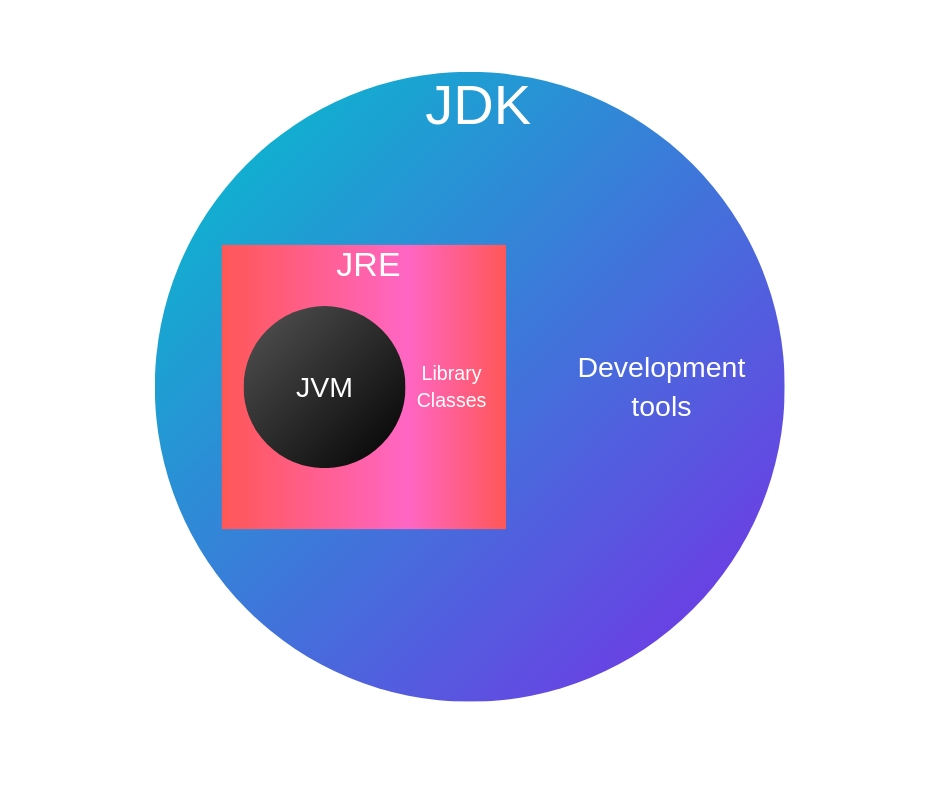
The Java Development Kit (JDK) is a software development environment used for developing Java applications and applets. It includes all the tools that are needed for developing Java programs. JDK provides facilities to develop and run java programs. Inside JDK there is a special tool kit called JRE(Java Run time Environment), JRE provides environment to only run (not develop) java programs, that is why it is called Java Run-time Environment.
Now, JRE works with the help of JVM (Java Virtual Machine ). JVM helps to execute our program line by line (it interprets the compiled byte-code line by line – you will see how JDK, JRE, and JVM works when you run “Welcome to Java” program on your computer.
Summery:
JDK = JRE + Development tools JRE = JVM + Library classes
How to install JDK on your Computer.
click :- Windows installation.
click :- Ubuntu installation.
So, lets create the program
Step:1 just open a text editor and type the following commands,
public class First{
	public static void main(String[] args){
		System.out.println("Welcome to Java");
	}
}
Then save this file as “First.java” (.java is the extension, “First” is the class name of the program, if you use a different name for your class then use that name instead of “First”).
Step:2 Open the Command Prompt or Terminal and change the directory to where you saved the “First.java” file ( to change your directory use the command “CD”).
Step:3 type the following command on your command prompt or the terminal and hit enter,
javac First.java
We use “javac” command to compile our program which is First.java into First.class file.
Note: your program is written in High-Level programming language(Human readable language) which computers cannot understand, so you need to translate that into machine codes before running it. that’s what you do by compiling the program
Java compiler translates all the source codes in a .java file into a special intermediate machine independent codes which are called “Byte Codes” these Bytes Codes can be run on any system no matter what are the hardware components or the Operating system, then these byte codes will be saved in a .class file in order to be executed on a computer.
Step:4 If the program is compiled correctly then you can run it on your Terminal, with the following code,
java First
We use the code “java” to run “.class” files on the terminal, but here we do not mention the program name as “First.class”, you just only need to type “First”.
Note: your program will be taken by JVM(java virtual machine) and all the byte-codes in your .class file will be interpreted into machine dependent codes. Finally, the processor will execute those machine codes.
Done:; You will see “Welcome to Java” message is appeared on the terminal, which means your first java program is created, although you still don’t know what are the commands in that program. But, don’t worry you will learn all the commands in that program one by one.
Just watch the video below if you do any mistakes while you are doing those 4 steps above(this video is specially created for Ubuntu users but don’t mind just skip first 65 seconds and watch the video –> keep in mind, in Windows we use note pad for writing this program, and the command prompt will be used for executing the program.

 logic behind the code
Good work well done..follow thenewbostan web site
LikeLike
Oh Thank you, Sir, I highly appreciate your comment. I can say that you always motivate me since my A/L education.
and Note: this is the comment that I got from an outside user for the first time:)
LikeLike
Hashan:)
LikeLike